How To Play Google Play Movies & TV Content On Your PlayStation 4
Here’s what you need to know about how to play google. To play Google Play Movies & TV content on your PlayStation 4, you will need to use the Google Play Movies & TV app, which is available for download from the PlayStation Store. Once the app is installed, you will need to sign in […]

Here’s what you need to know about how to play google.
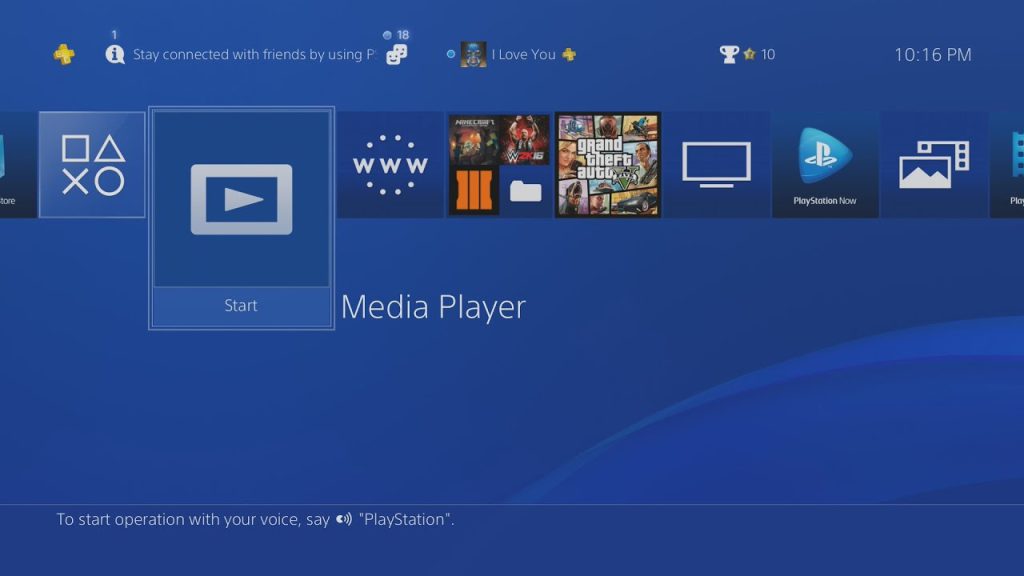
To play Google Play Movies & TV content on your PlayStation 4, you will need to use the Google Play Movies & TV app, which is available for download from the PlayStation Store. Once the app is installed, you will need to sign in with your Google account and link it to your PlayStation account. Once you have done this, you will be able to browse and watch all of the content that you have purchased or rented from Google Play Movies & TV on your PlayStation 4.
Here are the steps you can follow:
- Go to the PlayStation Store on your PS4 and search for “Google Play Movies & TV”
- Download and install the app.
- Purchase whatever show you want via Google Movies.
- Open the app and sign in with your Google account.
- Link your PlayStation account to your Google account.
- Browse and watch your purchased or rented content.
Note: You can also cast content from your mobile device or computer to your PS4 using the Google Play Movies & TV app.
Also check The Best Pokemon
Find more Gaming guides and resources on our site.
Troubleshooting Common Issues
If the Google Play Movies & TV app isn’t appearing in the PlayStation Store search results, try searching by the app’s full name rather than an abbreviation, and confirm your PS4’s region settings match a region where the app is supported, since availability varies by country. If you’ve linked your Google account but purchased content isn’t showing up, signing out and back into the app often resolves syncing issues.
Streaming quality issues are usually related to your home network rather than the app itself — a wired Ethernet connection to your PS4 generally provides more stable playback than Wi-Fi, particularly for HD or 4K content. If problems persist, checking for a system software update on your PS4 and an app update within the PlayStation Store can also resolve compatibility issues.
Alternative Ways to Watch
If you continue to run into issues, Google Play Movies & TV content (now largely consolidated under Google TV) can also typically be accessed through a web browser or a Chromecast-enabled device as a workaround while troubleshooting the PS4 app.
Setting Up the App for the First Time
When setting up Google Play Movies & TV on a PS4 for the first time, make sure your PlayStation Network account region matches the country associated with your Google Play purchases, since content licensing is region-locked. After installing the app from the PlayStation Store, you’ll be prompted to sign in, and it’s worth double-checking that two-factor authentication on your Google account doesn’t block the sign-in flow (you may need to approve the login from another device).
What Content Is Available
Once linked, you’ll have access to any movies or TV shows you’ve previously purchased or rented through Google Play, as well as the ability to buy or rent new titles directly through the app. Keep in mind that rental windows typically expire after a set period once you start watching, so it’s worth checking the rental terms before beginning a title if you plan to watch it over several sessions.